The bench: a visual console in your terminal
The bench is Paresium Clara in a full-screen terminal app. It is the easiest way to try every offering by hand: type a message, watch the governed check run, and read the result and its record side by side. Start it with:
paresium bench
The layout
Four panes and a message box. You type at the bottom; the panes fill in as a check runs.
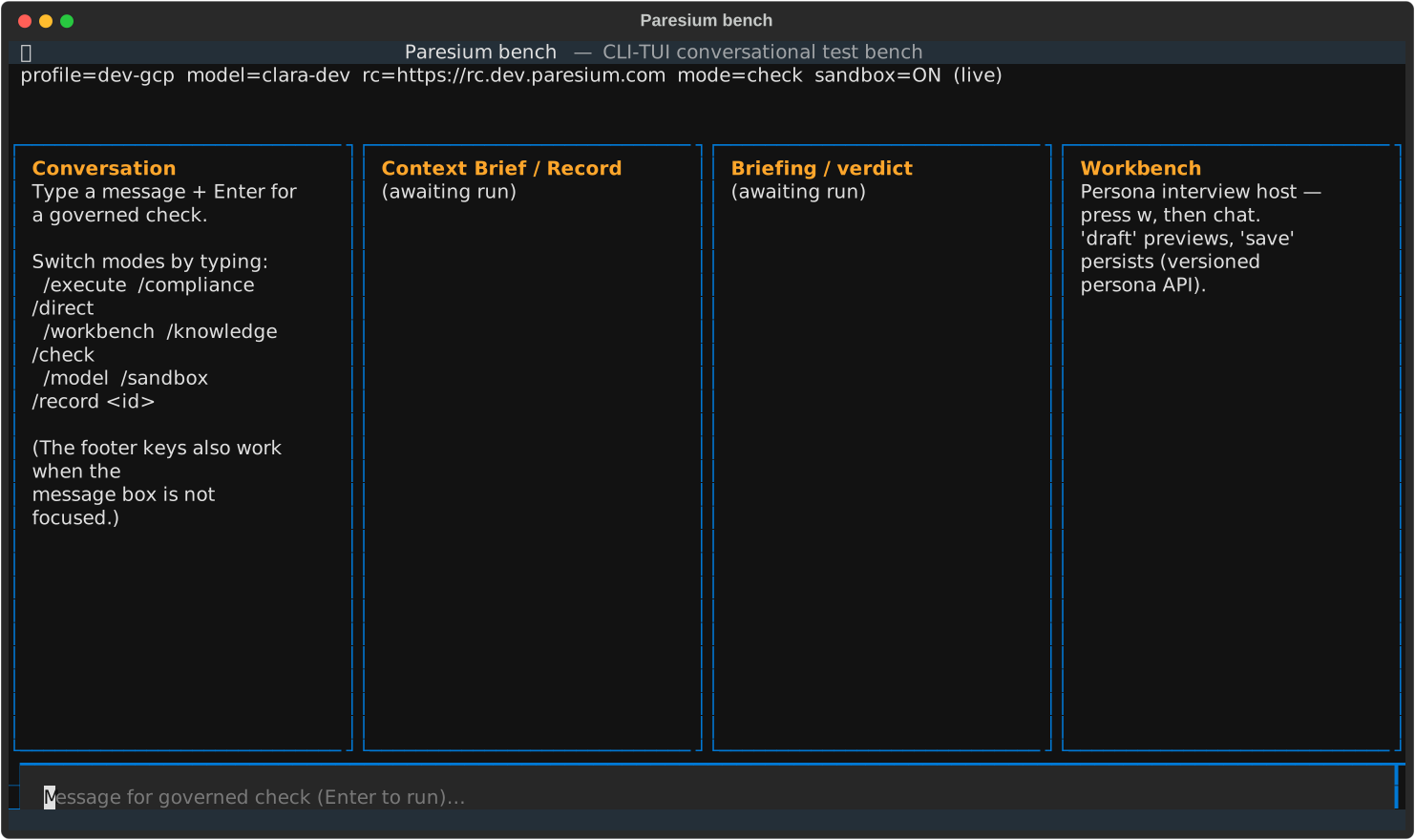
- Conversation shows your messages and Clara's replies, plus the list of commands you can type.
- Context Brief / Record shows what was gathered before the answer, and the saved record afterwards.
- Briefing / verdict shows the decision, the reasoning, and the safety outcome.
- Workbench is a scratch area used by the persona and knowledge tools.
The top banner always shows your profile, the model you are on (clara-dev is
the beta model), and the current mode.
Switching modes
The bench does more than answer questions. Switch what a message does by typing a slash-command and pressing Enter:
| Type this | What the next message does |
|---|---|
/check | Governed check (the default): a safe, reviewed answer with a record |
/execute | Brief plus a governed answer written for you |
/compliance | A fast pass / warn / block safety check |
/direct | Send your own instructions straight to the model (always metered) |
/knowledge | Open the knowledge wizard (below) |
/workbench | Interview and save an assistant persona |
/model | Show the model picker (only Beta is available today) |
/sandbox | Toggle test billing on or off |
/record <id> | Look up a saved record by its id |
The keys shown in the footer (like e or c) do the same thing, but only when
the message box is not focused. Typing the slash-command always works, so that
is the reliable way in.
The knowledge wizard
Teach Clara a compliance rule or a playbook without leaving the terminal. Type
/knowledge to open it:
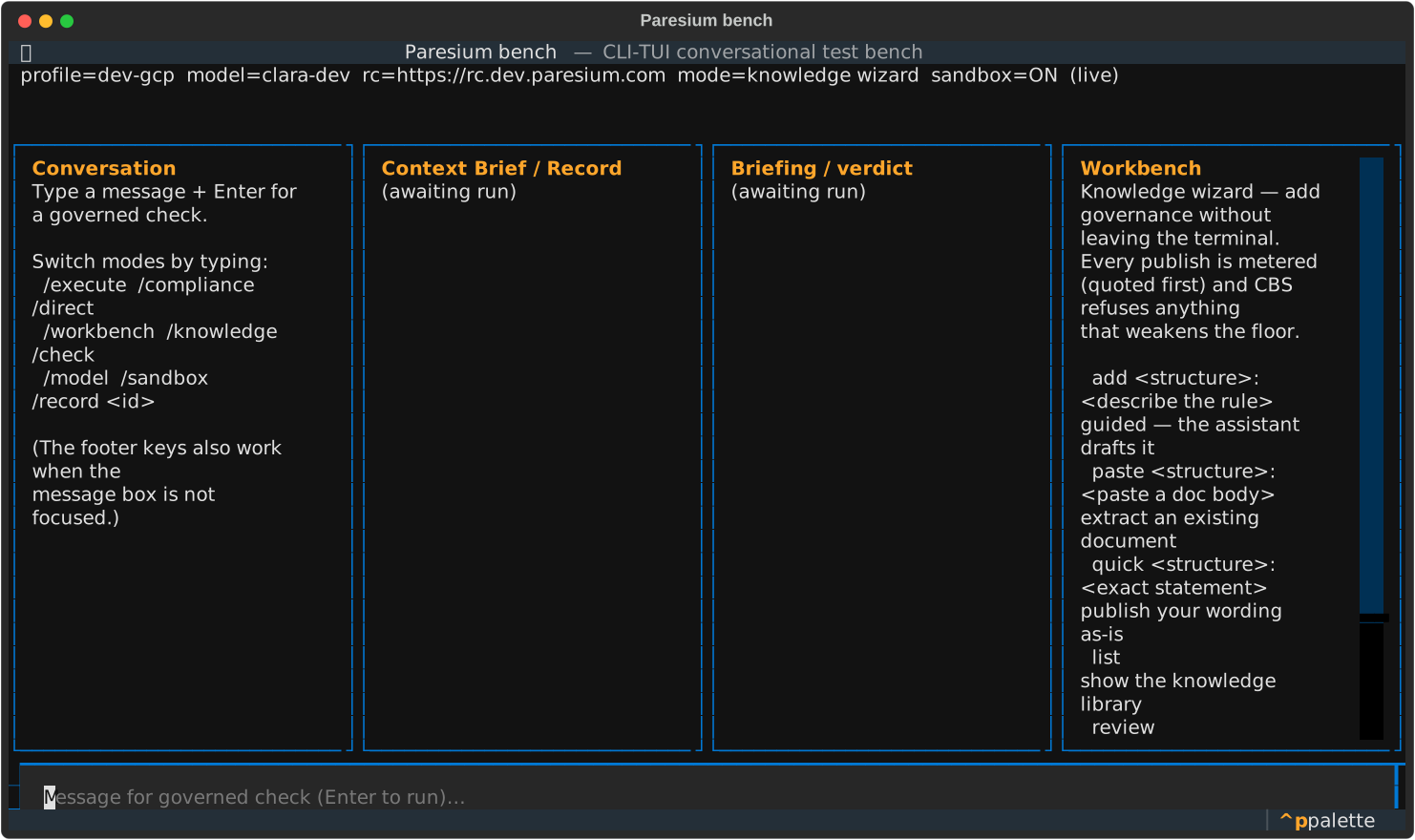
Three ways to add knowledge, all of which quote a price first and are checked so they can never weaken a required safety rule:
- Guided:
add compliance: customers must be told about fees before signing. An assistant drafts a clean, structured rule from your plain-language description. Refine it by typing changes, then typepublish. - Paste:
paste playbooks: <paste the text of an existing document>. The text is turned into structured items for you to review and publish. - Quick:
quick compliance: <your exact wording>. Publishes your statement as written.
structure is one of policies, playbooks, or compliance. After a draft
appears, type publish, a refinement, or cancel. See
Teach Clara for the full walkthrough and how to prove
a new rule is recognized.
Choosing the model
Type /model to see the model picker. Today only the beta model is live, so RC
and Production are shown but greyed out:
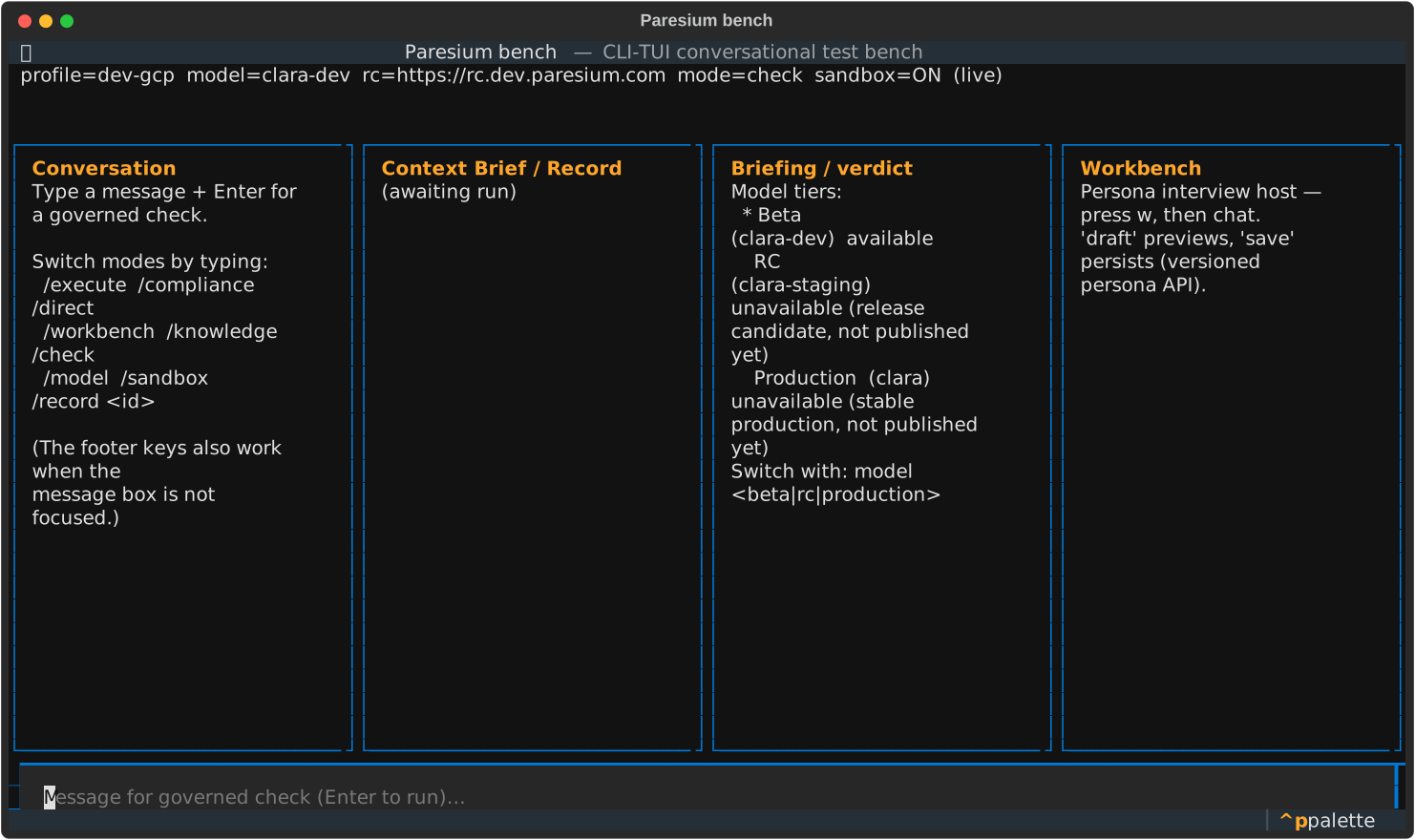
Every check you run records which model produced the answer, so an auditor can always see exactly what was used.